
Remove KMSPico From Windows 10 and 11
KMSPico can leave more than one file on the system. Removing the main folder is not always enough. Check installed apps, startup entries, scheduled tasks, services, antivirus exclusions and activation settings.
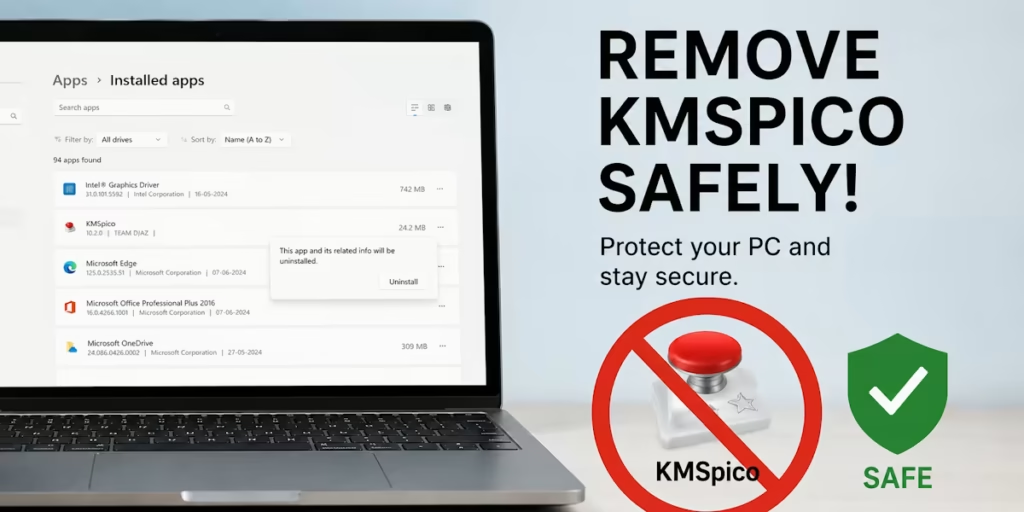
This guide works for Windows 10 and Windows 11.
Disconnect from the internet
Before cleaning the system, disconnect Wi-Fi or unplug the Ethernet cable.
This prevents unknown background components from contacting remote servers while you remove files and scan the PC.
Do not download new cleaners from popups, ads or random mirrors. Use built-in Windows tools and official Microsoft utilities.
Create a backup of personal files
Back up documents, photos and work files to an external drive or cloud storage.
Do not back up suspicious EXE, BAT, CMD, PS1, ZIP or RAR files related to activators.
Good files to keep:
Documents
Pictures
Videos
Desktop files
Browser bookmarks
Files to avoid copying:
KMSpico.exe
KMSAuto.exe
AutoKMS.exe
KMSELDI.exe
activator.zip
crack.rar
scripts.bat
setup.exe from unknown folders
The backup is only for personal files, not for suspicious tools.
Remove KMSPico from installed apps
Open:
Settings > Apps > Installed apps
On Windows 10, open:
Settings > Apps > Apps and features
Search for:
KMSPico
KMSAuto
AutoKMS
KMSELDI
Activator
If anything appears, select it and choose Uninstall.
Restart the computer after uninstalling.
If there is no uninstall entry, continue with the next steps. Many activators do not uninstall cleanly.
Delete obvious leftover folders
Open File Explorer and check these locations:
C:\Program Files
C:\Program Files (x86)
C:\ProgramData
C:\Users\YourName\AppData\Roaming
C:\Users\YourName\AppData\Local
C:\Users\YourName\Downloads
C:\Users\YourName\Desktop
Look for folders or files with names such as:
KMSPico
KMSAuto
AutoKMS
KMSELDI
Pico
Activator
SECOH
Delete only files that clearly belong to KMSPico or the activator package.
If Windows says the file is in use, do not force it yet. Scan the system first, then remove the remaining file after restart or from Safe Mode.
Empty the Temp folder
Press:
Windows + R
Enter:
%temp%
Delete temporary files in the folder that opens.
Some files may be locked. Skip them.
Then press:
Windows + R
Enter:
temp
Delete what Windows allows.
This helps remove installer leftovers, unpacked archives and temporary scripts.
Check Task Scheduler
KMS activators often use scheduled tasks to run again after reboot.
Press:
Windows + R
Enter:
taskschd.msc
Open:
Task Scheduler Library
Look for tasks with names related to:
KMS
KMSPico
KMSAuto
AutoKMS
KMSELDI
Service_KMS
Pico
Click a suspicious task and check the Actions tab. If the action points to an activator folder, Temp folder, AppData folder or unknown EXE file, delete the task.
Do not delete tasks from Microsoft, Windows, Intel, NVIDIA, AMD, Adobe, Google or other known software unless you are sure they are connected to the activator.
Check Windows services
Press:
Windows + R
Enter:
services.msc
Look for suspicious services with names like:
KMS
KMService
KMSPico
AutoKMS
Service_KMS
KMSELDI
Open the service and check the Path to executable.
If it points to a KMSPico, AutoKMS, AppData, Temp or unknown activator folder, stop the service and set Startup type to Disabled.
Restart the PC.
For command line checking, open Windows Terminal or Command Prompt as administrator and run:
sc query type= service state= all | findstr /i "kms pico auto kmseldi"
If you find a clearly confirmed activator service, you can remove it with:
sc delete "ServiceName"
Replace ServiceName with the exact service name, not the display name.
Do not delete a service if this is a work PC connected to an organization. Some companies use a real Key Management Service for volume activation. Ask IT first.
Remove Microsoft Defender exclusions
Some activators add exclusions so antivirus will ignore their folders.
Open:
Windows Security > Virus and threat protection > Manage settings
Scroll to:
Exclusions
Click:
Add or remove exclusions
Remove exclusions that point to:
C:\
C:\Windows
C:\ProgramData
C:\Users
Downloads
Temp
AppData
KMSPico
KMSAuto
AutoKMS
KMSELDI
A full drive exclusion is a bad sign. Remove it unless you added it yourself for a specific trusted reason.
Microsoft documents Defender exclusions under Virus and threat protection settings, and Defender Antivirus is built into Windows 10 and Windows 11.
Update Defender and run a full scan
Reconnect to the internet.
Open:
Windows Security > Virus and threat protection
Click:
Protection updates
Then click:
Check for updates
After that, go back and select:
Scan options
Choose:
Full scan
Click:
Scan now
A full scan can take a long time, but it is the correct scan after removing an activator.
Microsoft recommends getting the latest security intelligence and running a full scan when checking for unwanted software.
Run Microsoft Defender Offline
Some threats hide while Windows is running. Defender Offline scans the PC before normal Windows fully loads.
Open:
Windows Security > Virus and threat protection > Scan options
Choose:
Microsoft Defender Antivirus Offline scan
Click:
Scan now
Save your work before starting. The PC will restart and run the offline scan.
Microsoft describes Defender Offline as a scan that runs outside Windows and can help remove recurring malware.
Run Microsoft Safety Scanner
Download Microsoft Safety Scanner from Microsoft.
Run it as administrator.
Choose:
Full scan
Let it finish and remove anything it detects.
Microsoft Safety Scanner is made to find and remove malware from Windows computers. It expires 10 days after download, so download a fresh copy when you need to scan again.
Check startup entries with Autoruns
Download Autoruns from Microsoft Sysinternals.
Extract the ZIP file.
Right click:
Autoruns64.exe
Choose:
Run as administrator
Open:
Options
Enable:
Hide Microsoft Entries
Then check these tabs:
Logon
Scheduled Tasks
Services
Drivers
AppInit
Look for entries connected to:
KMSPico
KMSAuto
AutoKMS
KMSELDI
SECOH
Pico
Unknown EXE files in:
AppData
Temp
ProgramData
Downloads
Right click a confirmed bad entry and choose Delete.
Autoruns is useful because it shows startup locations, services, scheduled tasks and other auto start points in one place. Microsoft describes it as one of the most complete tools for checking what runs during boot or login.
Do not remove drivers or system entries unless you know exactly what they are.
Reset proxy settings
Some unwanted tools change proxy settings.
Open:
Settings > Network and Internet > Proxy
Turn off:
Use a proxy server
unless you use a proxy on purpose.
Then open Command Prompt as administrator and run:
netsh winhttp reset proxy
Restart the browser after this step.
Check the hosts file
Open Notepad as administrator.
In Notepad, open:
C:\Windows\System32\drivers\etc\hosts
Change the file type selector from Text documents to All files if you do not see it.
A normal hosts file may be almost empty or contain only comments starting with #.
Remove suspicious lines that redirect Microsoft, antivirus, browser or update domains.
Save the file.
Do not delete the hosts file itself.
Clear KMS activation settings
Open Command Prompt as administrator.
First check the current activation status:
slmgr /dli
If the system shows a KMS server or volume activation on a personal home PC, clear the KMS server setting:
slmgr /ckms
Then open:
Settings > System > Activation
On Windows 10, open:
Settings > Update and Security > Activation
Enter a genuine product key or sign in with the Microsoft account that has the digital license.
Microsoft’s Windows activation guide explains activation through product key and digital license.
Do not run random activation scripts after cleaning the system. That brings the same problem back.
Check browser extensions
Open every browser you use.
Check extensions in:
Chrome > Extensions
Edge > Extensions
Firefox > Add-ons and themes
Remove extensions you do not recognize, especially coupon tools, download helpers, search tools, fake security extensions and anything installed around the same time as KMSPico.
Then check the default search engine and start page.
Set them back to your normal choice.
Change important passwords
If you used the computer for email, banking, social media, crypto wallets, hosting panels or work accounts after installing KMSPico, change important passwords from a different clean device.
Start with:
Email
Microsoft account
Google account
Banking
PayPal
Crypto wallets
Hosting accounts
Work accounts
Also enable two factor authentication where possible.
Do this after removing the threat, not before.
Restart and scan again
Restart the PC.
Run one more quick scan in Windows Security.
Then open Task Scheduler, Services and Autoruns again. Confirm that the suspicious entries did not come back.
If the same task or service returns after deletion, there is still a hidden startup component. Run Defender Offline again and use Autoruns to find the parent entry.
When to use Safe Mode
Use Safe Mode if files cannot be deleted or the suspicious service keeps starting.
Open:
Settings > System > Recovery > Advanced startup > Restart now
Then choose:
Troubleshoot > Advanced options > Startup Settings > Restart
Press:
4
After Safe Mode starts, delete the remaining files and check Task Scheduler and Services again.
Restart normally when finished.
When a clean reinstall is better
A clean reinstall is the safest option if:
Defender keeps finding the same threat
Unknown services return after removal
Browser redirects keep coming back
Windows Security is broken
System files are heavily modified
You entered sensitive passwords while the activator was installed
The PC is used for work, banking or business accounts
Download the official Windows installer from the Microsoft Windows 11 download page or the Microsoft Windows 10 download page.
Back up only personal files. Do not restore activators, cracks, unknown installers or old ZIP archives.
Final check
KMSPico cleanup is finished only when all of this is true:
Windows Security opens normally
Defender exclusions are clean
Full scan finds nothing
Defender Offline finds nothing
Safety Scanner finds nothing
No KMSPico folders remain, No AutoKMS tasks remain, No suspicious KMS services remain
Autoruns shows no activator startup entries
Proxy settings are normal
The hosts file has no suspicious redirects
Windows is activated with a real key or digital license
If all checks pass, the system is clean enough for normal use. If anything keeps returning, stop trying to patch it manually and reinstall Windows from official Microsoft installation media.