
Ghost Spectre Windows 11 – Features, Versions and Setup
Ghost Spectre Windows 11 is a modified Windows build designed to use fewer background services, less storage and less memory than a standard installation. It removes or disables selected Windows components and includes Ghost Toolbox for restoring optional features.
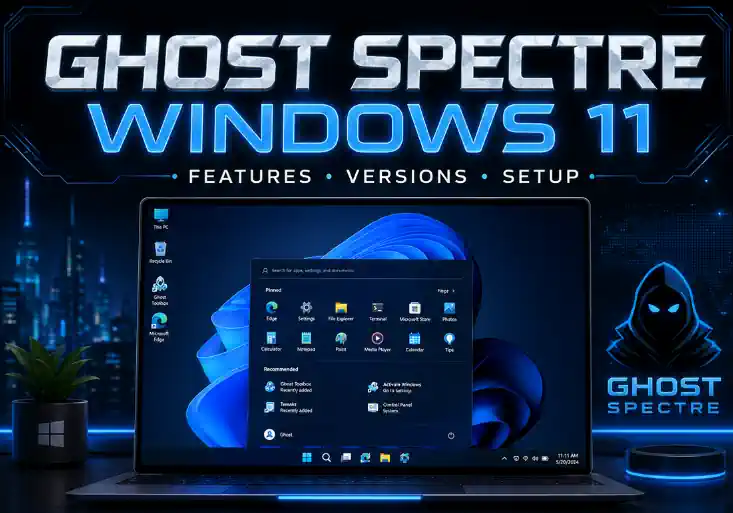
It is not an official Microsoft edition. The ISO is modified by a third-party developer, so it should be tested before replacing a stable Windows installation.
What Ghost Spectre Changes
The exact changes depend on the release and selected edition, but Ghost Spectre builds commonly reduce or remove:
- Preinstalled Microsoft apps
- Telemetry and diagnostic tasks
- Widgets and consumer features
- Search indexing
- Unnecessary scheduled tasks
- Selected background services
- OneDrive integration
- Optional Windows components
The project also provides Ghost Toolbox, which can reinstall or enable features such as Microsoft Store, Xbox components, Windows Security tools and other packages.
The project’s current videos and release information are published through the Ghost Spectre YouTube channel. The channel includes Windows 11 builds, performance tests and installation notes, including material related to Windows 11 24H2 and 25H2.
Superlite or Compact
Ghost Spectre normally offers more than one configuration.
Superlite
Superlite removes or disables more Windows components. It is intended for gaming PCs, old hardware, virtual machines and systems where the lowest possible background usage is the priority.
Choose Superlite when you only need standard desktop programs and games.
Some Windows features may need to be restored manually. This can include Microsoft Store, Xbox services, printing features, touchscreen components, Hyper-V or other optional packages.
Compact
Compact stays closer to a regular Windows installation. It still removes bundled apps and reduces background activity, but keeps more Windows features available.
Choose Compact when the PC is used for normal daily work, software development, printers, Bluetooth devices, Microsoft Store apps or specialised hardware.
Compact is usually the safer choice when you are unsure which Windows components your programs require.
Does Ghost Spectre Improve Performance?
Ghost Spectre can reduce idle memory usage, background processes and storage use. The difference is most noticeable on systems with:
- 4–8 GB of RAM
- Older processors
- Slow SATA SSDs or hard drives
- Limited storage
- Many unwanted Windows background apps
It will not turn weak hardware into a high-performance gaming PC. Game performance still depends mainly on the processor, graphics card, memory and drivers.
On a modern PC with enough RAM and a fast SSD, a clean official Windows installation with startup apps disabled may perform similarly while keeping all Microsoft components intact.
Test It in a Virtual Machine First
A virtual machine is the easiest way to check the interface, installed components and Ghost Toolbox before changing a physical PC.
Download VirtualBox, create a new Windows 11 virtual machine and attach the Ghost Spectre ISO.
A practical test configuration is:
4 GB RAM
2 processor cores
60 GB virtual disk
Do not enter personal accounts, passwords or private files during the first test. Check that Windows Security, networking, Windows Update and the programs you need work correctly.
A virtual machine cannot accurately show gaming performance, but it can reveal missing components and compatibility problems.
Downloading the Correct Build
Use the latest release information from the official Ghost Spectre channel. Avoid websites that re-upload the ISO under a similar name, add their own installer or require a separate download manager.
Before downloading, confirm:
- Windows version and build number
- Superlite or Compact edition
- Defender or non-Defender configuration
- Language
- Architecture
- Release date
- Installation password, when one is required
Do not use an ISO simply because its filename contains “Ghost Spectre.” Modified copies can use the same name.
Verify the ISO File
If the release provides an SHA-256 hash, compare it with the downloaded file before installation.
Open PowerShell in the folder containing the ISO and run:
Get-FileHash .\filename.iso -Algorithm SHA256
Replace filename.iso with the real filename.
The displayed hash must exactly match the value published by the developer. Even one different character means the file is not identical.
You can also scan the file with VirusTotal, although a clean result cannot fully verify a modified operating system image.
Create a Bootable USB Drive
Download Rufus and connect an empty USB drive with at least 8 GB of space.
Open Rufus and select:
Device: your USB drive
Boot selection: Ghost Spectre ISO
Partition scheme: GPT
Target system: UEFI
Click Start and wait for the USB drive to be created.
Everything already stored on the selected USB drive will be erased.
For older BIOS-based computers, you may need to select MBR instead of GPT.
Install Ghost Spectre Windows 11
Back up every important file before starting. A clean installation removes the current Windows installation, installed programs and files stored on the system partition.
Restart the PC and open its boot menu. The usual keys are:
F12
F11
F9
Esc
Select the USB drive and start Windows Setup.
Choose the required Ghost Spectre edition carefully. If several versions appear, verify whether you are selecting Compact, Superlite, Defender or non-Defender.
For a clean installation:
- Select Custom: Install Windows only.
- Choose the target system partition.
- Format or delete the old Windows partition only after confirming that your files are backed up.
- Select the empty space and continue.
- Allow the computer to restart.
- Remove the USB drive when the first restart begins.
After installation, install the chipset, graphics, network and audio drivers from the hardware manufacturer.
Windows Activation
Ghost Spectre does not replace the Windows licensing system. Use a genuine product key or the digital license already assigned to the computer.
Check activation under:
Settings > System > Activation
A device previously activated with the same Windows edition may activate automatically after connecting to the internet.
Do not use activation scripts bundled with unofficial downloads. They are not required when the PC already has a matching digital license.
Restore Microsoft Store and Other Features
Open Ghost Toolbox after installation. The available menu can differ between releases, but it is normally used to restore components such as:
- Microsoft Store
- Xbox services
- Windows Security features
- OneDrive
- Optional Windows packages
- Language components
- Touchscreen and tablet features
Install only the components you need. Restoring every removed package defeats the purpose of using a stripped Windows build and may create dependencies that were not included in the original image.
Install Drivers Before Judging Performance
Windows may start with basic Microsoft drivers, but these are not always the best drivers for gaming or power management.
Install drivers from the official support pages for your:
- Motherboard or laptop
- AMD, Intel or NVIDIA graphics
- Wi-Fi and Bluetooth adapter
- Audio device
- Chipset
Avoid generic driver-updater programs. They may install the wrong driver or replace a stable manufacturer driver with an unsuitable version.
Run Windows Update only after the required hardware drivers are installed and after checking the update recommendations for the Ghost Spectre release you are using.
Common Compatibility Problems
A heavily reduced Windows build may cause problems with software that depends on removed services.
Common examples include:
- Microsoft Store apps not installing
- Xbox or Game Pass login errors
- Printer detection failures
- Missing touchscreen keyboard
- Windows Hello not working
- Hyper-V or Windows Sandbox unavailable
- WSL installation errors
- Anti-cheat systems refusing to start
- Language packs failing to install
- Feature updates restoring removed components
Compact is a better choice when the computer needs these features. Superlite is better suited to a focused gaming or test system with a small set of known programs.
Ghost Spectre or Official Windows 11?
Use Ghost Spectre when you specifically need a stripped system for an old PC, test machine or minimal gaming setup and are prepared to solve compatibility problems.
Use an official Windows 11 ISO when the computer stores private data, handles payments, is used for work or needs predictable updates and complete Windows functionality.
The official ISO and Media Creation Tool are available from the Microsoft Windows 11 download page. Microsoft also provides a standard procedure for creating Windows installation media.
A clean official installation can be made lighter by uninstalling unwanted apps, disabling unnecessary startup programs and turning off features you do not use. This provides most of the practical benefit without relying on a pre-modified system image.
Final Choice
Choose Superlite for a minimal test or gaming PC where low background usage matters more than complete Windows functionality.
Choose Compact when you want a lighter system but still need Microsoft Store, devices, printers or regular desktop software.
Test the ISO in VirtualBox first, download only through the project’s official release channel, verify the file hash when available and keep an official Windows 11 USB drive ready in case you need to return to the standard system.