
Safe Mode in Windows 11
Safe Mode starts Windows 11 with only essential drivers and system services. It is useful when the PC crashes, shows a black screen, restarts repeatedly, or becomes unstable after installing a driver, update, or program.
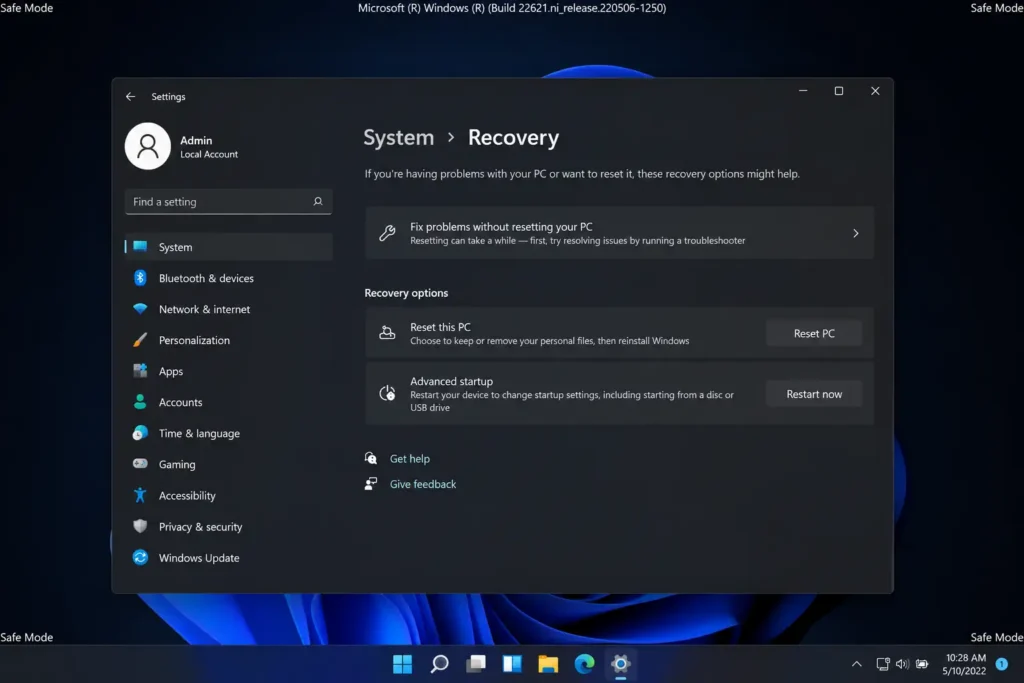
Windows 11 provides three startup options:
- Safe Mode loads the minimum required components.
- Safe Mode with Networking also enables network drivers and internet access.
- Safe Mode with Command Prompt opens Command Prompt instead of the normal desktop.
For most troubleshooting, start with regular Safe Mode. Use networking only when you need internet access or files from another device.
Start Safe Mode from Windows Settings
Use this method when Windows 11 still opens normally.
Go to:
Settings > System > Recovery
Under Recovery options, find Advanced startup and select Restart now.
After the computer restarts, open:
Troubleshoot > Advanced options > Startup Settings > Restart
When the numbered startup menu appears, press:
4 or F4 — Safe Mode
5 or F5 — Safe Mode with Networking
6 or F6 — Safe Mode with Command Prompt
Microsoft documents these options on its official Windows Startup Settings page.
Start Safe Mode from the Sign-In Screen
Use this option when Windows reaches the login screen but you cannot sign in or open the desktop.
Hold the Shift key and select:
Power > Restart
Keep holding Shift until the computer begins restarting.
Then select:
Troubleshoot > Advanced options > Startup Settings > Restart
Press 4, 5, or 6 for the required Safe Mode option.
Microsoft recommends the same Shift-and-Restart route for opening the recovery environment from the sign-in screen.
Enter Safe Mode When Windows Will Not Start
Windows normally opens the Windows Recovery Environment automatically after repeated failed startup attempts.
If that does not happen:
- Turn on the PC.
- When the Windows logo appears, hold the power button until the PC shuts down.
- Repeat this interrupted startup two or three times.
- Allow Windows to open Automatic Repair.
- Select Advanced options.
Then open:
Troubleshoot > Advanced options > Startup Settings > Restart
Press 4 for Safe Mode or 5 for Safe Mode with Networking.
Do not repeatedly interrupt startup unless Windows cannot boot normally. When the desktop is still accessible, use Settings or Shift + Restart instead.
Force Safe Mode with System Configuration
System Configuration can make Windows start in Safe Mode every time until the setting is removed.
Press:
Windows + R
Enter:
msconfig
Open the Boot tab and enable:
Safe boot
Choose one of these options:
Minimal — regular Safe Mode
Network — Safe Mode with Networking
Select Apply, then OK, and restart the computer.
This method is useful when you need to restart in Safe Mode several times while testing drivers or software. However, Windows will continue entering Safe Mode until you disable the setting.
Exit Safe Mode
A normal restart is usually enough:
Start > Power > Restart
If Windows keeps returning to Safe Mode, press:
Windows + R
Enter:
msconfig
Open the Boot tab, clear Safe boot, select Apply, and restart.
Microsoft lists clearing the Safe boot checkbox as the fix when Windows repeatedly starts in Safe Mode.
What to Check in Safe Mode
Safe Mode is mainly used to remove or reverse a recent change.
If the problem started after installing a program, uninstall it from:
Settings > Apps > Installed apps
If the issue appeared after a driver update, open:
Device Manager
Find the affected device, open Properties, select the Driver tab, and use Roll Back Driver when available.
For display problems, check:
Device Manager > Display adapters
For unstable startup programs, open Task Manager with:
Ctrl + Shift + Esc
Then disable suspicious entries under Startup apps.
If Windows works correctly in Safe Mode but fails during a normal startup, the problem is likely connected to a third-party driver, startup application, service, or recently installed software.
Safe Mode or Clean Boot?
Safe Mode loads only essential Windows components. A clean boot starts Windows normally but disables non-Microsoft services and startup programs.
Use Safe Mode when Windows crashes, shows a black screen, or cannot start normally.
Use a clean boot when Windows opens but you need to identify which background application or service is causing a conflict. Microsoft provides a separate guide for performing a clean boot in Windows.
Safe Mode Without a Password
Windows may require the account password instead of a PIN while running in Safe Mode. If the PIN is not accepted, enter the password for the Microsoft or local account.
Safe Mode with Networking may not support every Wi-Fi adapter. If internet access does not work, connect an Ethernet cable or restart into normal Windows after completing offline repairs.
When Safe Mode Does Not Fix the Problem
If Windows still crashes in Safe Mode, the issue may involve damaged system files, storage errors, faulty memory, or another hardware problem.
Return to:
Troubleshoot > Advanced options
From there, you can use Startup Repair, Uninstall Updates, System Restore, or Command Prompt. Microsoft’s Windows recovery options page explains which recovery tool fits each type of startup failure.
For most users, the quickest route into Safe Mode is:
Shift + Restart > Troubleshoot > Advanced options > Startup Settings > Restart > F4