
Windows 11 Requirements – Check If Your PC Is Compatible
Windows 11 requires more than enough RAM and free disk space. The processor must be on Microsoft’s supported list, and the computer needs TPM 2.0, UEFI firmware, and Secure Boot support.
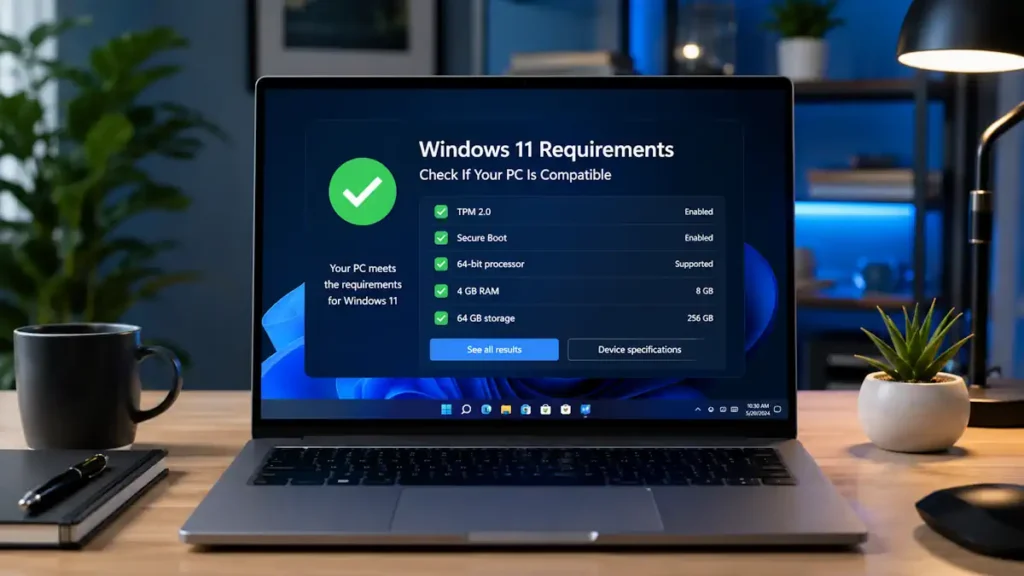
The quickest way to check everything at once is Microsoft’s free PC Health Check app.
Minimum Windows 11 System Requirements
A PC must meet these specifications:
Processor: 1 GHz or faster, with at least two cores, on a compatible 64-bit processor or system on a chip.
RAM: 4 GB or more.
Storage: At least 64 GB.
System firmware: UEFI with Secure Boot capability.
TPM: Trusted Platform Module version 2.0.
Graphics: DirectX 12-compatible graphics with a WDDM 2.0 driver.
Display: A screen larger than 9 inches with at least 720p resolution and 8 bits per colour channel.
Internet and account: Windows 11 Home and Windows 11 Pro for personal use require an internet connection and Microsoft account during initial setup.
These are installation minimums. For normal daily use, 8 GB of RAM and an SSD with at least 128–256 GB of capacity provide a more practical setup.
Check Compatibility with PC Health Check
Install Microsoft’s PC Health Check, open it, and select:
Check now
The app checks the processor, TPM, Secure Boot, memory, and storage. If the device fails, expand the result to see the exact requirement causing the problem.
A failed check does not always mean that new hardware is required. TPM 2.0 or Secure Boot may exist but be disabled in the BIOS or UEFI settings.
Check the Processor
Meeting the 1 GHz and two-core requirements is not enough. The processor must also belong to a supported CPU family.
Microsoft maintains separate compatibility lists for Intel, AMD, and Qualcomm processors on its Windows processor requirements page. The lists are separated by Windows 11 version, including 24H2 and 25H2.
To identify your processor, press:
Windows + R
Enter:
msinfo32
Check the Processor line in System Information, then compare the exact model with Microsoft’s list.
Check TPM 2.0
Press:
Windows + R
Enter:
tpm.msc
Look for:
Specification Version: 2.0
If Windows reports that a compatible TPM cannot be found, restart the computer and open its BIOS or UEFI settings.
The option may be named:
Intel PTT
AMD fTPM
Security Device Support
Trusted Computing
Enable it, save the settings, and run PC Health Check again.
A separate TPM module is usually unnecessary because many modern processors and motherboards provide firmware-based TPM.
Check UEFI and Secure Boot
Press:
Windows + R
Enter:
msinfo32
Find these entries:
BIOS Mode: UEFI
Secure Boot State: On
If BIOS Mode shows Legacy, the system may be using an MBR-formatted boot drive. Simply enabling UEFI can prevent Windows from starting, so the system disk may need to be converted to GPT first.
Windows 11 officially requires UEFI firmware with Secure Boot capability.
Check RAM and Storage
Open:
Settings > System > About
The Installed RAM value must be at least 4 GB.
To check storage, open:
Settings > System > Storage
Windows 11 requires a storage device with at least 64 GB of capacity, but the installation also needs enough free space for setup files, updates, applications, and temporary data.
For an upgrade, clear temporary files and unused applications before starting. Microsoft’s Installation Assistant also needs free disk space to download and prepare the installation.
Check the Graphics Card
Press:
Windows + R
Enter:
dxdiag
Open the Display tab and check the graphics model and driver information.
Windows 11 requires DirectX 12-compatible graphics and a WDDM 2.0 driver. Older graphics hardware may work poorly even when the processor and memory meet the other requirements.
Install the latest graphics driver directly from Intel, AMD, NVIDIA, or the computer manufacturer before running the compatibility check again.
Requirements for a Windows 10 Upgrade
Before upgrading, make sure Windows 10 is activated and install all available updates.
Open:
Settings > Update & Security > Windows Update
Select:
Check for updates
Then run PC Health Check. If the computer passes, check Windows Update again for the Windows 11 upgrade offer.
Microsoft recommends checking compatibility before using the Windows 11 Installation Assistant or installation media.
The official ISO, Installation Assistant, and Media Creation Tool are available from the Windows 11 download page.
When Only One Requirement Fails
If TPM 2.0 fails, check whether Intel PTT or AMD fTPM is disabled in UEFI, If Secure Boot fails, confirm that Windows uses UEFI rather than Legacy BIOS mode, If storage fails, remove temporary files or replace the system drive, If RAM fails, install additional compatible memory.
If the processor is unsupported, changing settings will not add it to Microsoft’s compatibility list. PC Health Check provides the clearest final result for that device.
A Practical Windows 11 Setup
The official minimum is enough to install Windows 11, but a comfortable everyday PC should ideally have:
8 GB RAM or more
128–256 GB SSD or larger
A supported multi-core processor
TPM 2.0 and Secure Boot enabled
Current chipset and graphics drivers
Start with PC Health Check. It is faster and more reliable than checking every requirement manually.